

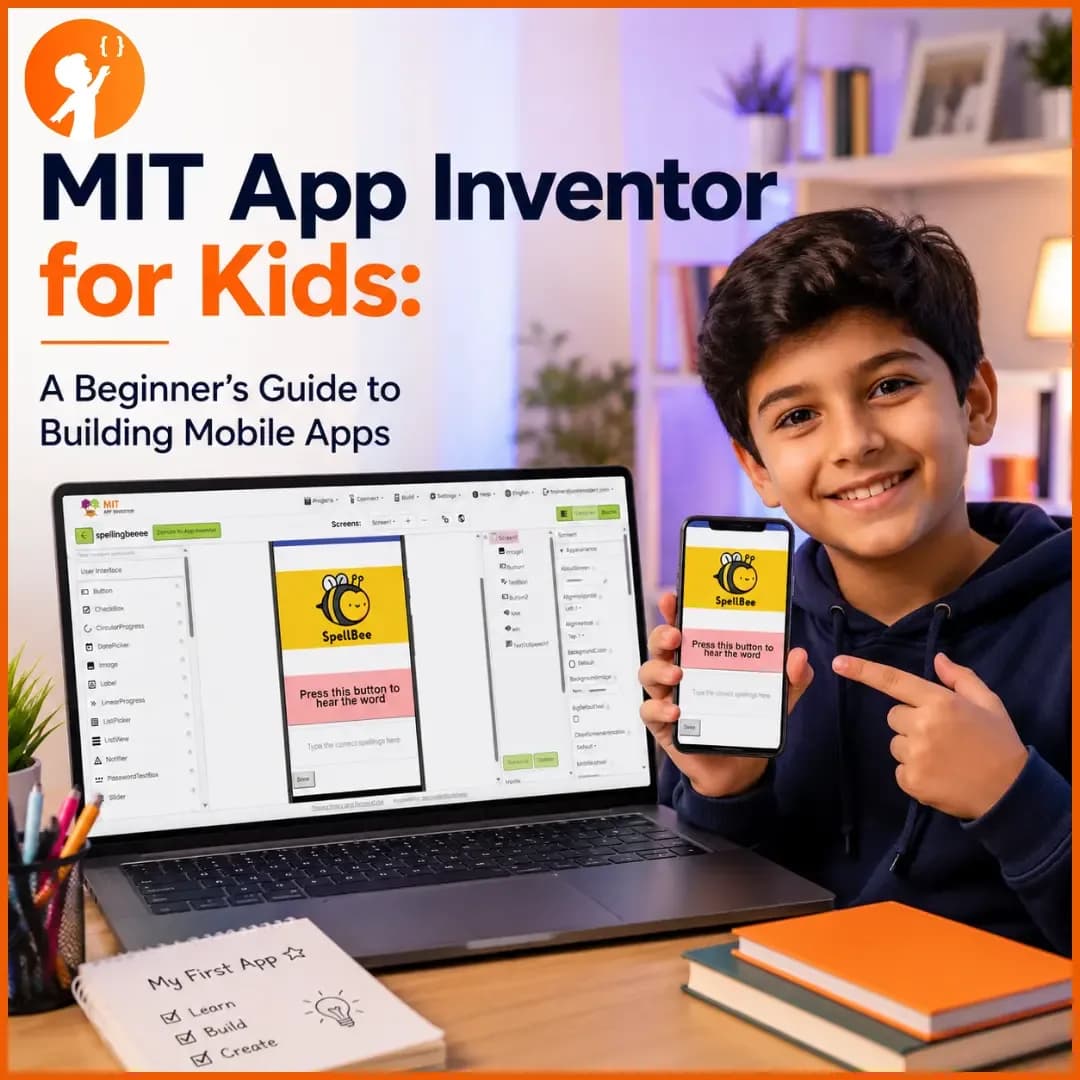
If your child has ever dreamed of making their own phone app, MIT App Inventor is one of the best places to start. It’s free, beginner-friendly, and lets kids build real, working Android apps by dragging and dropping blocks — no complicated typing required.
In this guide, we’ll explain what MIT App Inventor is, what kids can build with it, a simple step-by-step tutorial to make a first app, and how it compares to Thunkable. It’s the perfect next step after our app development for kids guide.
What Is MIT App Inventor?
MIT App Inventor (sometimes written as app MIT inventor or MIT AI2) is a free, block-based tool originally created by Google and now run by the Massachusetts Institute of Technology (MIT). It lets beginners — especially kids and students — build real Android apps right in a web browser by snapping together colourful blocks instead of writing lines of code.
Think of it like digital LEGO for apps: kids drag pieces together to design how their app looks and works, then test it live on a phone.
Why Is MIT App Inventor Great for Kids?
MIT App Inventor is loved by teachers and parents because it makes real app-building genuinely achievable for children. Here’s what makes it such a great choice:
| Feature | Why It’s Great for Kids |
|---|---|
| Free to use | Completely free and open-source — no cost, ever |
| No typing code | Block-based drag-and-drop means no confusing syntax |
| Real Android apps | Kids build actual apps that run on real phones |
| Live testing | See the app work on a phone instantly as they build |
| Beginner-friendly | Designed for kids and students, so first wins come fast |
| Teaches real skills | Builds the same logic used in professional coding |
What Can Kids Build Using MIT App Inventor?
More than most parents expect! Even as beginners, kids can build genuinely useful and fun apps, such as:
- Quiz apps that test knowledge on any topic
- Calculators and unit converters
- Simple games like tap-the-target or a memory game
- Drawing and paint apps
- Soundboards that play sounds at the tap of a button
- To-do lists and reminder apps
- Apps that use the phone’s features — camera, location, or sensors
- Even AI-powered apps with image recognition, as their skills grow
The mix of creativity and logic means there’s something for every child — and every finished app is something real they can show off. For more inspiration, see our best AI projects for kids.
Build Your First App in 4 Simple Steps
Getting started takes just minutes. Here’s how a child can build and test their very first Android app with MIT App Inventor.
- Open MIT App Inventor and sign in. Go to ai2.appinventor.mit.edu in a web browser on a computer and sign in with a Google account. That’s the login — no download needed to start building.
- Create a new project. Click Project > Start New Project in the top-left menu, and give your project a name (like “MyFirstApp”).
- Design your app. Now you’re in the Designer, which has three key areas:
- Palette (left): all the pieces you can add — buttons, labels, text boxes, images, and more. Drag the ones you want onto your app.
- Viewer (centre): a live preview of what your app looks like.
- Properties (right): where you change how each piece looks — its colour, font size, text, and background.
- Test it on your Android phone. This is the exciting part. On your Android phone, download the free MIT AI2 Companion app from the Google Play Store, and make sure the phone and computer are on the same Wi-Fi. Back in your browser, click Connect > AI Companion — a QR code appears. Open the Companion app, tap “Scan QR code,” and scan it. Within seconds your app appears live on your phone, and it updates in real time as you make changes. That’s how you connect MIT App Inventor to Android.
MIT App Inventor vs Thunkable
MIT App Inventor and Thunkable are the two most popular block-based app builders for kids, and they’re quite similar — both use drag-and-drop blocks and are beginner-friendly. But there are a few real differences worth knowing:
| MIT App Inventor | Thunkable | |
|---|---|---|
| Builds apps for | Android (iOS is limited/beta) | Both Android and iPhone (iOS) |
| Cost | Completely free | Free tier + paid plans |
| Live testing | Yes — via the AI2 Companion app on Android | Yes — via the Thunkable Live app |
| Runs | In your web browser | In the cloud (browser) |
| Best for | Kids focused on Android, and classrooms | Kids who want to build for iPhone too |
How Junior Coderz Teaches MIT App Inventor
At Junior Coderz, MIT App Inventor is a core part of how we teach kids to build real apps — guided every step of the way by our expert engineer trainers in live classes. Instead of watching videos alone, students build actual projects, get instant feedback, and steadily level up through an age-based curriculum. App development is built into two of our programs:
- Junior Inventors (Ages 8–10) — younger kids start with beginner app creation, designing simple, functional apps and learning the basics of logic and design.
- Code Champions (Ages 11–14) — older students build more complex apps, dive deeper into coding logic, and create apps that solve real-world problems.
You can see everything covered in our app development for kids program, taught by our expert trainers.
Projects Our Students Have Built with MIT App Inventor
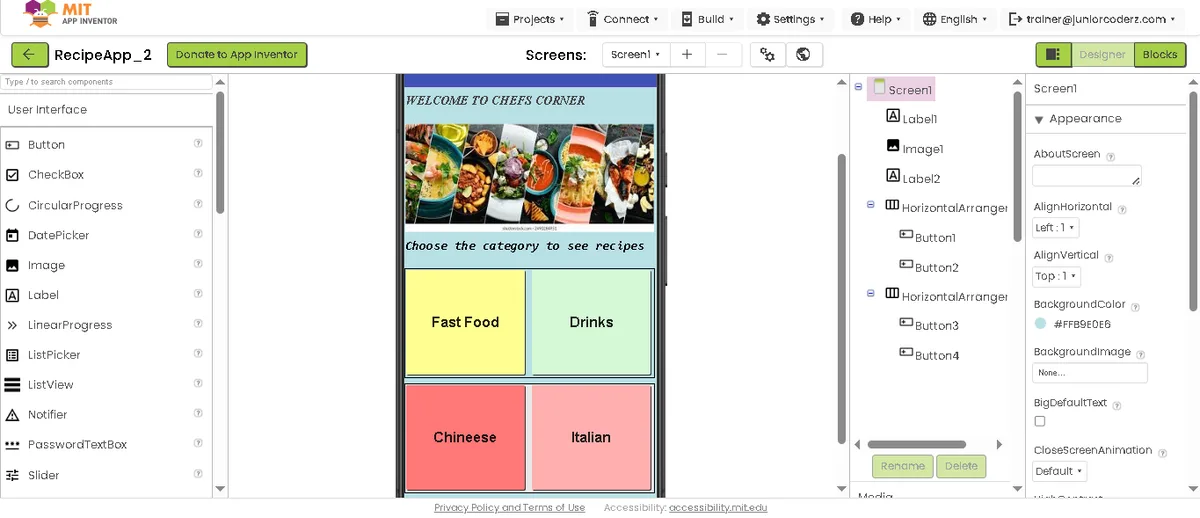
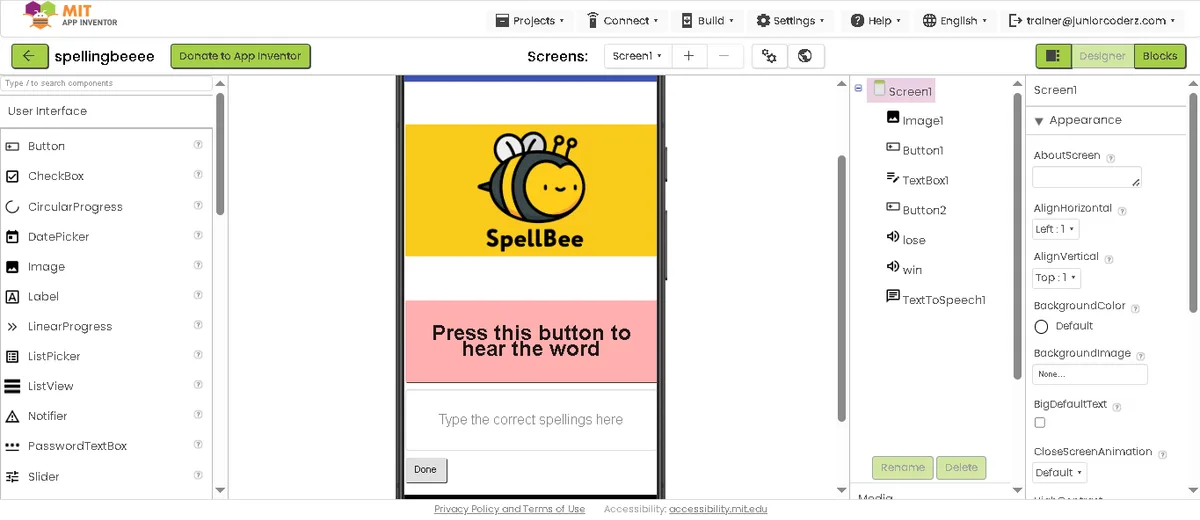
The best proof is what our students actually create. Here are real apps built by Junior Coderz kids using MIT App Inventor — from their first quiz app to more advanced tools. Tap any image to see it up close.
1. Translator App by Adam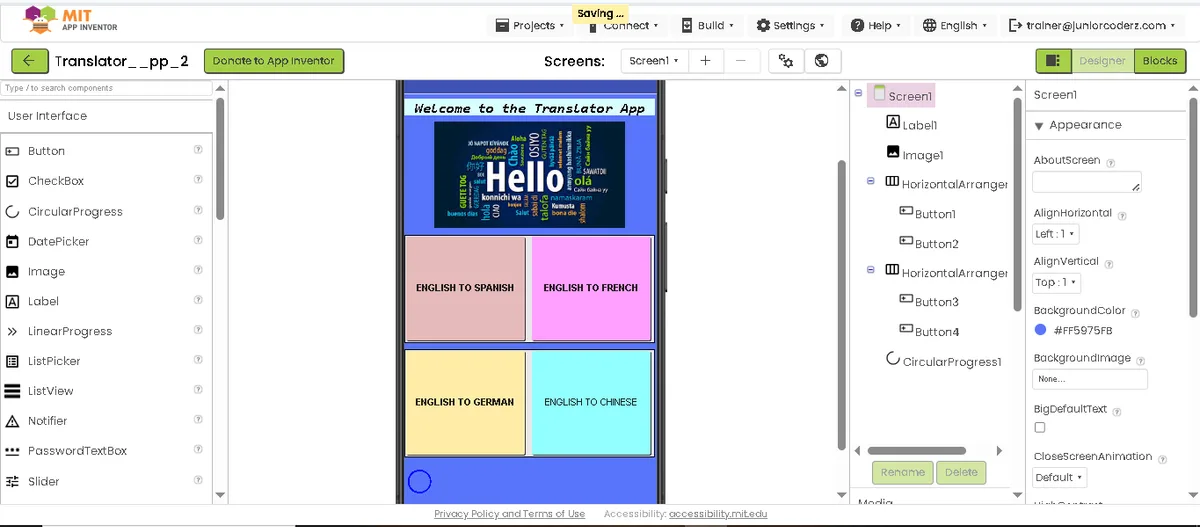
Building apps is also a fantastic foundation for AI and app competitions like the Congressional App Challenge — another exciting goal for young developers.
Start Building Your Child’s First App Today
MIT App Inventor proves that kids don’t need to be coding experts to build something real — they just need the right tool and a little guidance. With a free platform and friendly drag-and-drop blocks, your child could go from “I wonder if I could make an app” to holding one they built, often in a single session.
The best way to start is to see it in action. Book a free trial class with Junior Coderz and watch your child build their first app — or explore all our courses and the full range of skills we teach to find the perfect starting point.
Conclusion
MIT App Inventor is one of the friendliest, most rewarding ways for kids to step into the world of app development. It’s free, it builds real Android apps, and its drag-and-drop blocks mean children can start creating from day one — no coding experience needed. From a simple quiz app to AI-powered projects, it grows right alongside your child’s skills and curiosity.
Frequently Asked Questions
Is MIT App Inventor easy to learn?
Yes — it’s designed for beginners and kids. Because it uses drag-and-drop blocks instead of typed code, most children can build a simple working app within their very first session.
Is MIT App Inventor coding?
Yes, it’s real coding — just visual. Kids use blocks instead of typing, but they’re learning genuine programming logic like events, conditions, and variables, the same concepts used in professional languages.
Which language is used in MIT App Inventor?
MIT App Inventor uses a block-based visual programming language — kids drag and connect blocks rather than writing a text language like Python or Java. This makes real coding logic easy for beginners to understand.
Is MIT App Inventor free or paid?
It’s completely free — and open-source. There are no hidden costs, which makes it a fantastic choice for kids, families, and schools.
Can I use MIT App Inventor on mobile?
You build your app on a computer in a web browser, then use an Android phone (with the free MIT AI2 Companion app) to preview and test it live. So you’ll need a computer to build, and an Android device is best for testing.


